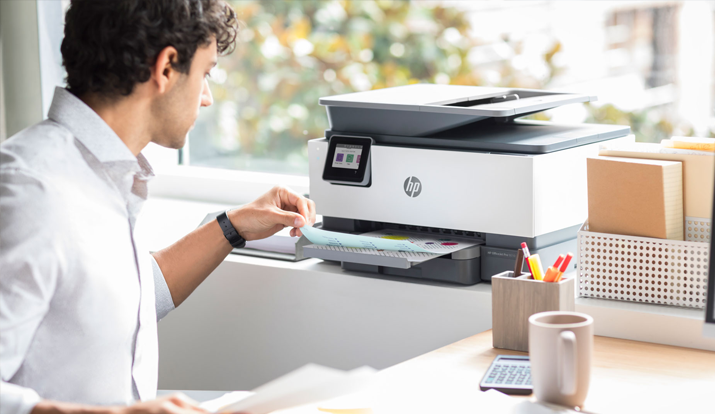
Scanner not found, Scanner Unreachable, Scan To Computer Currently Not Available if you are getting these regularly in your HP Printers then know that the scanner is facing some troubles that you need to fix it, and fortunately HP provides features and a Scan doctor that can solve your problems in minutes.
1.RUN Windows Image Acquisition (WIA)
If you’ve got the message "WIA required to use this machine" then you have got to take the help of Windows Image Acquisition Service- a model driver responsible for scanning and cameras. So you have to activate the service if you need your scanning to work:
Take these steps to activate WIA-- Go to Windows, type R, a RUN action dialog box will open, in that type- services. msc and then click OK. Following a window will appear scroll down and find Windows Image Acquisition, double-click on the option. Here a new window will appear of WIA, where you have to check if the startup type option is selected to "AUTOMATIC" and below Service Status to "STARTED", click Apply from below, and then finally select OK to save changes.
2. HP Print Scan Troubleshooter Software
Using the manufacturer troubleshooter to fix scanning issues, HP manufacturer provides its customers with in-built software that lets you cure the scanning errors in minutes. The best part is it is provided by HP itself so there is 90%chance that your errors related to scanning will be managed effectively without any difficulties.
First ensure that your HP Printers are connected then go to the website, where you will find the guide to troubleshoot scanning options, Download the guide and follow the instructions. The file will be saved under the name of HPPSdr.exe so make sure you find and run it through. You can also take the help of HP Printer Drivers Support to get you through scanning or any problems you may sufferer from the troubleshooting scan options.
If you get a blue wrench then it means that the printer scanning problem is fixed. If you get a red X action, then it means that your printer has a problem and you need to follow the instructions mentioned on the website.
3.Resetting & Compatibility
Adopt the most universal troubleshooting techniques if nothing works, it works for every machine, and HP’s is no exception, it works 90% and would magically solve the queries in the simplest of ways, try resetting the device, the cabling, and the wiring and whether all the options are turned on. Sometimes the compatibility may also be the reason maybe you are using the wrong drivers, or the said printer does not have the updated operating systems installed. Go to the web pages of HP support and see if your HP model hardware is compatible with the latest operating system like Windows 10.
4. The SFC Scan
In the command prompt option. To run the SFC scan, enter DISM.exe/Online/Cleanup-image/Restorehealth' click "Return", after that type "sfc/scannow" and hit Enter. This will solve your queries about scan in about an hour.
Apply all the solutions given above and see what works for you the best, if you are still facing troubles then contact HP Printer Customer Support for fruitful solutions from the top qualified experts on all the knowledge of HP Printers in a cost-effective manner.